- Home
- Learn Linux
- Learn Electronics
- Raspberry Pi
- Programming
- Projects
- LPI certification
- News & Reviews

Google Ads
Building a custom electronics project often means needing a custom case to house it perfectly. In this guide and accompanying video, I’ll walk you through the complete workflow of designing a laser-cut wooden enclosure for a Raspberry Pi Pico model railway points controller. Featuring a sloping front panel to comfortably mount your control switches and ample room for two PCBs, this project takes you step-by-step from the initial 3D model to the final physical cut. We'll cover the entire software pipeline , starting with FreeCAD for the dimensional design, moving to Inkscape for 2D vector refinements, and finishing in LightBurn to control the laser cutter.
This video shows how I designed a wooden laser cut enclosure for a Raspberry Pi Pico based electronics project. The project is for a points controller for a model railway. It houses two electronics PCBs with the electronics required to control model railway solenoids. It is based around a wood box, which has a sloping top with switches for controlling the points.
The design takes you through the main steps using:
Both FreeCAD and Inkscape are free open source software (FOSS), but LightBurn is a commercial paid for application. I'm not aware of a free alternative which works as well as LightBurn, so for now I am using the commercial software for that.
In FreeCAD I used the LC Interlocking (Laser Cutter Interlocking) workbench. However due to the limitations of the plug-in I started the box design in the normal parts workbench before using the LC Interlocking workbench to add the tags.
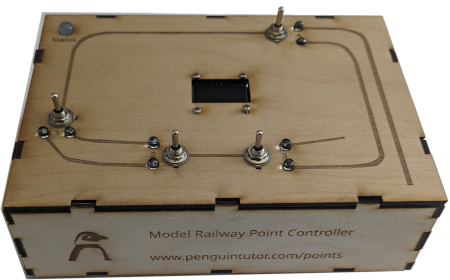
I then show 3 different techniques for adding holes for the components, and two for how to add writing and etching.
All three tools (FreeCAD, Inkscape and LightBurn) can be used for creating cuts (holes), whereas only Inkscape and LightBurn are used for adding text and drawings which can be etched on the wood.

More about the model railway points controller.
See my other FreeCAD tutorials:
There are more guides to creating 3D models and use of a 3D printer at Penguintutor 3D design and 3D print projects
Also see:
To see future updates please:
Subscribe to the PenguinTutor YouTube Channel
Please view the copyright information regarding use of the circuits.

